
Identify the task before zooming
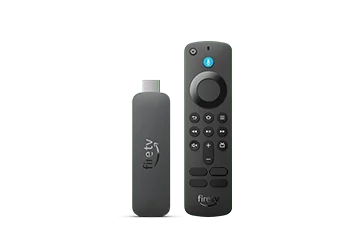
Open Accessibility settings and inspect Screen Magnifier on the actual device. The current help describes remote controls for zooming and panning, with some differences for newer remotes. Follow the instructions matching your remote instead of borrowing a gesture from a phone or another television platform.
State what needs enlargement: an app label, an information screen or a control. If the goal is larger dialogue captions, check the player’s caption-style options as a separate task. Magnifying a navigation screen is not a promise to enlarge every video subtitle correctly.
Practise entering and leaving the view
Before using it during an important session, practise zoom and pan on a harmless settings screen. Note the documented exit action and keep the physical remote available. A zoomed screen can put the expected item outside the visible area without deleting it.
For an illustrative exercise, locate a heading, pan to its related option and then return to the normal view. Confirm that the viewer can recover the whole screen without relying on somebody else remembering the last position. This is a suggested learning sequence, not a hands-on test result.