
Compare the affected layers
Note whether the home screen, settings and app navigation are enlarged. Then inspect an ordinary permitted programme without changing the television’s picture mode. Keep menu crop, subtitle crop and video crop as separate observations.
A hypothetical remote shortcut could leave interface zoom active while the viewer expects the normal full menu. Controls may be outside the visible area rather than deleted. Record the action that preceded the change if it is known, but do not assume the last app opened caused it.
Use the documented exit route
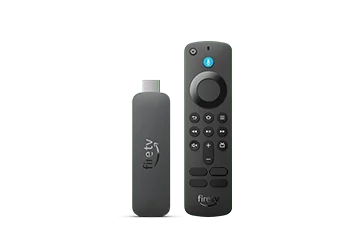
Consult Amazon’s Screen Magnifier instructions for the remote in use. They describe activation, zoom and panning, with some newer-remote differences. Return to the normal view through the applicable control and verify whether the original menu layout returns.
Do not guess repeated button combinations from old posts while a viewer depends on magnification. Explain the change and preserve the preferred readable state. If the task is caption size, inspect the player’s own caption-style options separately instead of using global display resolution as the first adjustment.
Investigate remaining crop separately
If picture edges remain cut off after system magnification is known to be inactive, record that result and investigate the display path. The television’s aspect or overscan controls belong to a different layer. Avoid changing both at once and losing the evidence of which setting mattered.
Send support the Fire TV model, remote, magnifier state and which layers are affected. Keep any helpful screenshots free of account details. A normal programme picture does not prove every interface control is correctly sized, and a zoomed interface does not itself establish a defective video stream.