
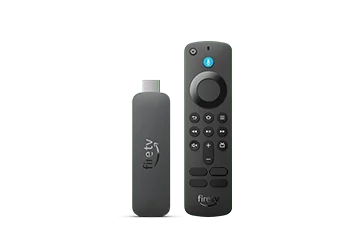
Find the supported tool
Amazon places the tool under Settings, Display & Sounds, then Audio and Video Diagnostics on supported devices. Its help explicitly says the tool is not available on every Fire TV. If your menu differs, record the model and software version rather than assuming that an absent control is an app failure.
Before running it, sketch the equipment chain: Fire TV to television, or Fire TV through a receiver or soundbar. Include the television’s audio return connection if one is used. The same player can encounter a different reported capability after moving to another HDMI input.
Separate capability from the sample
For missing sound, the documented guided route includes Troubleshoot Audio/Video Issues and No Audio. For surround complaints, Amazon also distinguishes detected format support from the diagnostic test video and the selected programme. Those are three different observations.
Use a short note with columns for detection, test sound and programme sound. An illustrative result might be detected surround support, a working diagnostic sample and silent audio in one app. That narrows the next investigation to the programme or app path without proving the exact cause. Do not describe that example as a result from your own equipment.
Preserve the comparison
Keep the original volume and input settings in the note before making changes. Change one part of the route at a time, then repeat the same diagnostic sample. If changing an HDMI path alters detection, include both paths in the report rather than claiming that the subscription’s audio format changed.
When seeking support, send the device names, connection diagram and observed diagnostic outcomes. Hide serial numbers and account details from screenshots. A compatible capability indicator does not guarantee that every service, app or title delivers that format, and a diagnostic success is not a service-wide playback test.