
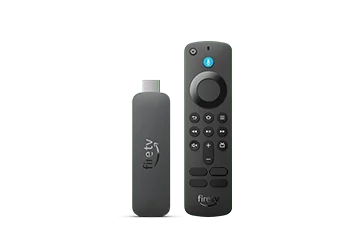
Prepare the real remotes
Amazon recommends having the equipment remotes available before setup. Keep the television and sound-system remotes beside the Fire TV remote so you can recover a working input or volume state if the combined-control setup behaves unexpectedly. Record the exact equipment model instead of choosing a similar brand name by guesswork.
Draw the route used for viewing. A box connected directly to the television and a box connected through a receiver can need different input selections. Write down which device owns the final speaker volume. This makes the setup questions about power, input and sound easier to answer consistently.
Use the supported discovery flow
The documented manual route is Settings, Equipment Control, Manage Equipment, then Add Equipment. Amazon says compatible equipment may also be detected automatically, with Automated Device Discovery controlled through Advanced Settings. Use the actual on-screen choices on your model.
Complete each offered check while watching the equipment itself. For instance, a volume test should be judged by the intended soundbar changing volume, not merely by a volume icon appearing somewhere on screen. If the wrong device responds, return to the equipment selection before proceeding with additional shortcuts.
Check everyday use as separate actions
After setup, test power, correct input, volume and app navigation independently. Keep the original remotes accessible until each action is dependable. If app navigation works while television power does not, document that distinction; a remote can perform several tasks through different control paths.
Avoid using a factory reset of the streaming player as the first response to one failed equipment command. A useful support note identifies the failed button, the device that should respond, the device that actually responds and whether its own remote works. That evidence is more actionable than saying that the entire Fire TV remote is broken.