
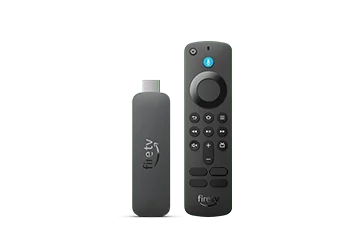
Observe what the box follows
Move between a few harmless menu items and note whether the text changes with focus. Then compare its appearance while a programme is playing. A box reflecting interface selections provides different evidence from an error message that remains tied to one stream.
For a hypothetical shared television, another viewer may have enabled the banner because the standard text is hard to read. Ask before disabling it. An unfamiliar accessibility preference is not proof that somebody installed a malicious application or altered a subscription account.
Inspect the relevant setting
Amazon’s current accessibility help places Text Banner in Accessibility and offers font, colour, size and timing controls. Use the actual menu on the device and note the current preference. Remote shortcuts differ in old online advice, so follow the current model’s official instructions.
If the banner was intentional but obstructs a needed control, consider a supported appearance adjustment with the viewer. If it was accidental, reverse the specific setting rather than factory resetting the device. Preserve other accessibility preferences that already work.
Keep subtitles and error reports distinct
If the box contains dialogue, inspect the programme’s subtitle controls instead. If it shows an actual error, preserve the wording and app. Do not assume every white rectangle is the same feature merely because this particular pattern can indicate Text Banner.
When seeking help, describe what makes the text change, where it appears, the current banner setting and the Fire TV model. A cropped harmless example can show obstruction without exposing accounts. This targeted record helps support address the correct interface layer while retaining the household’s working player configuration.