
Start with About and the Appstore
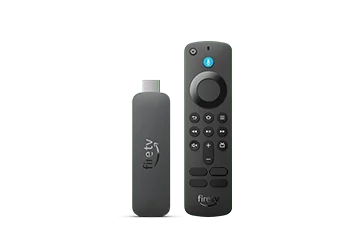
The Select name matters. Amazon’s device specifications place this model in the Vega family, while several similarly named Fire TV Sticks use Fire OS. Record the model identifier and installed Vega version from the device before comparing instructions.
Use the device’s own app catalogue to look for the intended player, then compare the publisher and supported sign-in methods with the account you intend to use. If that player is unavailable, the useful next step is to establish a supported alternative, not to keep trying Android installation files.
Build a small first-playback test
Connect the stick to the television, finish its normal network setup and confirm that an ordinary installed app opens. Install the selected compatible player through its supported route and enter only the account fields that player requests. Keep a note of whether the failure occurs before installation, during login or only after playback starts.
Those stages have different causes. An unavailable app is a platform/distribution problem. A rejected account is an authentication or service problem. Picture or sound trouble after login requires a playback-format and display-path check. Keeping the stages separate avoids unnecessary factory resets.
What the model does and does not establish
| Known manufacturer fact | Separate check |
|---|---|
| Vega platform | A player needs a Vega-compatible build |
| 4K-capable hardware | The source stream and television path determine actual quality |
| Amazon account/device setup | IPTV service credentials remain a separate account |
| Available software updates | Check the installed version rather than assuming latest rollout |
Keep the useful evidence
When requesting technical help, provide the model name, Vega version, player name and the visible error wording. A photo of the error can help, but crop account identifiers, private playlist addresses and passwords. There is no need to publish a complete account screen to show that an app cannot be installed.