
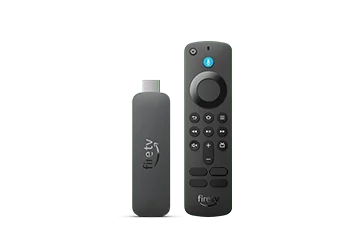
Identify the operating system before choosing software
Check About on the device and record its full model, release generation and installed software. Amazon’s current specification separates Android-based Fire OS hardware from Vega devices, including the 2025 4K Select and the 2026 HD and 4K third-generation sticks.
The retail terms 4K and HD describe only part of the product. An older tutorial may show Android settings that do not exist on a newer Vega model. Use the player publisher’s current requirements for the actual operating system.
Choose a supported installation route
Begin with the application catalogue on the Fire TV and the genuine player publisher. Compare the developer, account-input formats, remote interface and any app charge. If a supported Android-based release is distributed by the publisher outside the store, its stated requirements still matter.
An Android APK is not a Vega installation method. A short download code simply locates a resource; it does not establish compatibility, source identity or binary safety. Keep the exact application route in the setup record rather than collecting unrelated codes from search results.
Prepare the television and connection
Use the manufacturer’s documented power arrangement and an appropriate HDMI input. The 2026 4K third-generation Direct Power feature is model-specific; it should not be imported into instructions for every older stick.
Check the network at the streaming device’s actual location. A phone test in another room cannot establish the stick’s wireless path. Keep other settings unchanged if comparing two connection conditions so the result remains useful.
Add the account in the correct form
Establish whether the selected player expects a playlist, a server with username/password or a supported portal. Those input formats differ. A private playlist URL can contain credentials, so do not post it publicly or paste it into a search engine.
The Amazon account, player licence and media-service account are separate layers. Paying for application features does not automatically add a streaming subscription or change the account’s connection conditions.
Test the everyday tasks
Try opening the player from the home screen, searching with the remote, playing an authorised item, selecting available audio/captions and returning from full screen. If guide data is supplied, compare one entry with the programme being shown.
Record the last successful stage if something fails: installation, account connection, catalogue, guide or media playback. That is a more useful support description than repeatedly resetting the device.
Keep the Australian context precise
Use the actual store region and account conditions without assuming that a device sold in Australia includes every television service. A compatible player, a subscription and the rights for particular programming remain separate facts. This guide is based on manufacturer documentation; it does not claim a physical-device or authenticated service test.
Questions about this guide
Can I use the same APK on every Fire TV Stick?
No. Check the exact model and OS first. Android-based Fire OS and Vega require their respective supported application routes.
Does installing a player activate my subscription?
No. Device setup, an app licence and a streaming-service account are separate. Add the supported account format and test it after installation.