
Record the action that makes text appear
Note whether subtitles appear after muting, lowering volume fully or skipping backward. Apple’s current guide describes separate Show When Muted and Show on Skip Back controls. The latter can show subtitles temporarily when you skip back by up to thirty seconds.
This differs from selecting a full-time subtitle or accessible-caption track for an entire programme. Use the exact triggering action and whether the text later disappears in your notes. A brief appearance after a rewind can be a convenience feature rather than a subtitle track repeatedly failing to load.
Inspect the automatic preferences
Apple places these controls under Settings, Video and Audio, Automatic Subtitles. It also provides a preferred subtitle language and an option for videos whose language differs from the Apple TV language. Check the relevant control instead of changing every language preference at once.
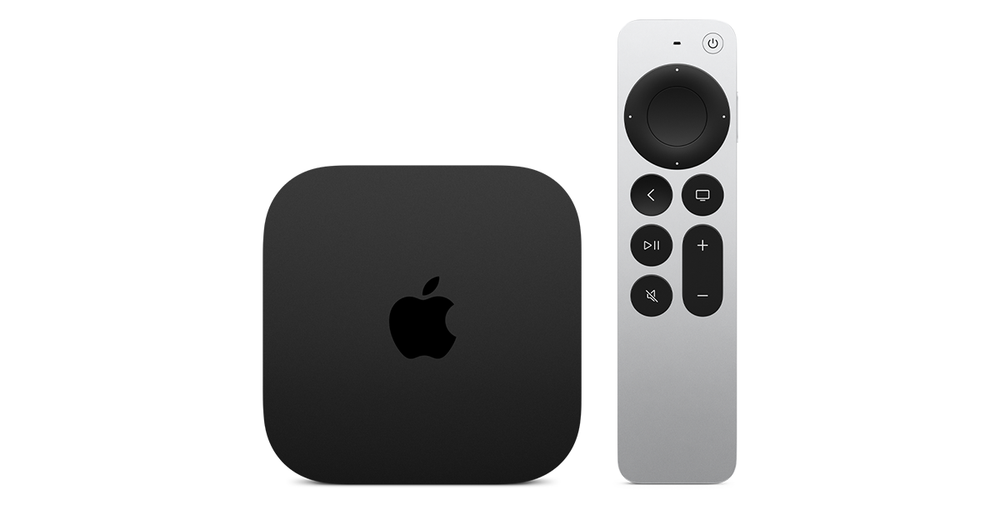
The guide explicitly says automatic subtitles on mute are not supported when television volume is controlled by an infrared remote. Keep that limitation with a mute test. A television becoming silent through a separate IR volume route does not establish that Apple TV received the same supported mute event.
Check the programme’s actual text availability
An automatic trigger still needs a suitable subtitle presentation in the content and supported viewing context. If the goal is captions for the full programme, use the available track and accessibility preferences for that application rather than relying on a temporary skip-back feature.
For an unexpected result, record the Apple TV and software, app, programme, selected automatic control and the exact mute or skip-back action. Include whether a separate IR remote controlled the television volume. Those details distinguish a deliberate automatic-text preference, a documented control-path exception and a programme-specific missing track.