
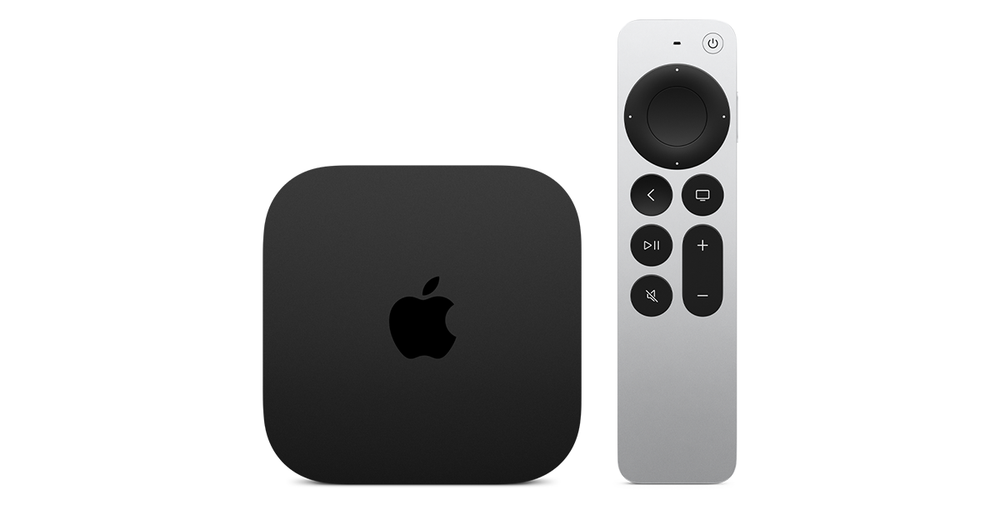
Set the device preference
In Apple TV Settings, open Accessibility → Subtitles and Captioning, then enable Closed Captions and SDH. This is the documented tvOS preference. A third-party player may also expose its own language and subtitle selection, so inspect the visible playback menu rather than assuming the device preference forces every app to behave identically.
Record the setting before troubleshooting. If another household member prefers a different display, a short note of the original state helps restore it later. Changing the subtitle preference should be a deliberate usability choice, not a substitute for diagnosing a programme with missing text.
Choose the available track
Open the subtitle controls for a programme that is known to offer captions. Look for the relevant language and, where identified, CC or SDH. Ordinary translated subtitles may contain dialogue without the speaker or sound information supplied in accessible captions. Choose according to the viewer’s needs.
If only one item lacks the expected option, compare a second captioned item in the same app. If no item offers captions, compare the app’s own help and a different app before changing the whole television configuration. Preserve the programme title and the exact missing language in the report.
Check the complete screen
Use dialogue with both short and long lines. Check readability from the normal seat, line wrapping, contrast and whether controls cover the text. A large font that looks attractive on one short sentence may obscure important information when a sports graphic or several speakers appear.
Check the television’s display sizing if the bottom of the picture is cropped. Changing caption size cannot restore text that has already been cut off by the output or screen. Keep a distinction between captions that are absent, too small, cropped and late; the remedies are different.
Confirm behaviour after changing items
Move to another episode or channel and check whether the selection persists. Apps can handle track preferences differently, and live content may have a different set of tracks from on-demand content. Test the viewing pattern you actually use rather than only a single film.
For support, include the app, tvOS version, title, language and whether the setting worked on another item. An anonymised close-up of the subtitle menu may help; a full account page usually does not. Avoid promising caption coverage for a service without checking its actual media inventory.