
Draw the actual sound path in words
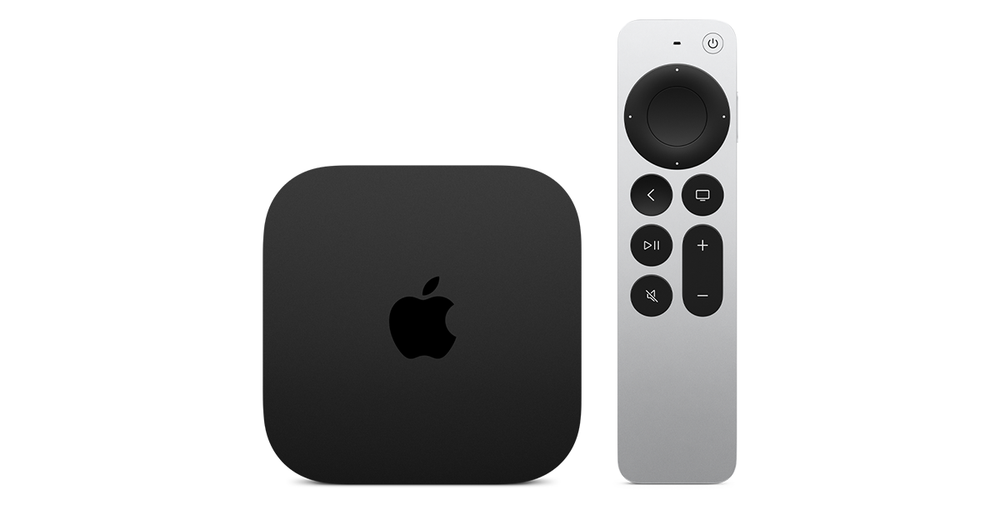
Write down what carries the Apple TV picture and audio to the television or receiver, then which wireless speaker is playing alongside it. If only one Bluetooth headset is active, that is a different setup from the mixed wired-and-wireless speaker case described by Apple.
Listen to a short spoken passage and decide whether you hear an echo between speakers or a mismatch between lips and all sound. An echo that disappears when one speaker is muted points to an output alignment question. A single programme drifting further out of sync points to a different investigation.
Run the documented calibration
On Apple TV, open Settings → Video and Audio, scroll to Calibration and choose Wireless Audio Sync. Follow the onscreen instructions with an iPhone held close to the television or receiver speakers. Apple TV plays tones through those wired speakers and uses the iPhone measurement to align the wireless output.
Keep the room suitable for hearing the calibration tones and avoid changing the connected speakers halfway through the procedure. Record the original output selection and make sure the test is occurring through the same equipment you normally use. Measuring a different speaker path gives you an answer to a different question.
Verify with the same ordinary content
After calibration, replay the passage that exposed the problem. Compare the mixed output with each speaker route on its own, keeping the programme and volume similar. The goal is a stable alignment in the actual setup, not simply completing the onscreen animation.
If the result improves one arrangement but not another, label the difference. A television’s built-in speakers, an HDMI receiver and a separate wireless speaker can form several combinations. Support needs to know which combination was calibrated and which one still produces an echo.
Escalate the remaining symptom accurately
If only one source has a fixed audio offset, investigate its player or source controls. If the offset grows while the programme plays, record the duration and compare another item. Calibration should not be repeatedly rerun to hide a media-specific fault.
Changing the receiver, sound mode or connection later can change the relevant path. Keep a concise setup record with the tvOS version and devices involved so you can recognise when a new calibration is appropriate. Do not claim this procedure verifies every format or service account.