
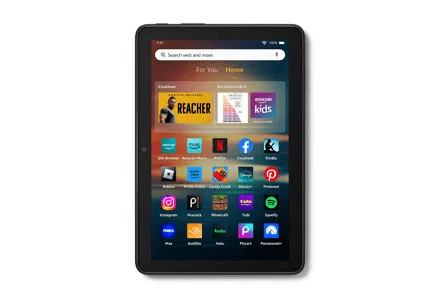
Read the full tablet identity
Amazon’s tablet specification tables distinguish release year and generation. For example, Fire HD 8 tablets from different years can retain a similar name while using different memory and software configurations. Match the model shown in device settings with the relevant row before choosing an application.
Do not use a Fire TV Stick guide simply because both products use Amazon branding. A television remote, tablet touch screen and their stores or application requirements can differ.
Use the supported Amazon route
Start with the application catalogue available to the tablet and the player publisher’s Fire tablet information. Android ancestry does not establish that every Google Play-dependent application is supported on the device.
Read whether the application requires additional platform services, a particular Android/API level or a tablet edition. If it is absent from the supported catalogue, resolve that software question rather than assuming a different streaming password will install it.
Match the media task to the screen
Amazon publishes display and decoder specifications for individual tablets. A stream’s advertised resolution can exceed what the tablet displays, and codec support varies by generation. The useful first test is the actual source, picture, sound and touch controls on the chosen tablet.
Test landscape/portrait changes, return from full screen and audio/caption selection. If you plan to send media to a television, verify the actual application and receiver route separately; do not assume every Fire tablet mirrors or casts in the same way.
Keep storage and account recovery clear
System software and installed apps occupy part of advertised storage. Inspect free space when an update fails. Before clearing a player’s data or removing it, keep the private details required to restore the account. A storage reset and a service renewal solve different problems.