
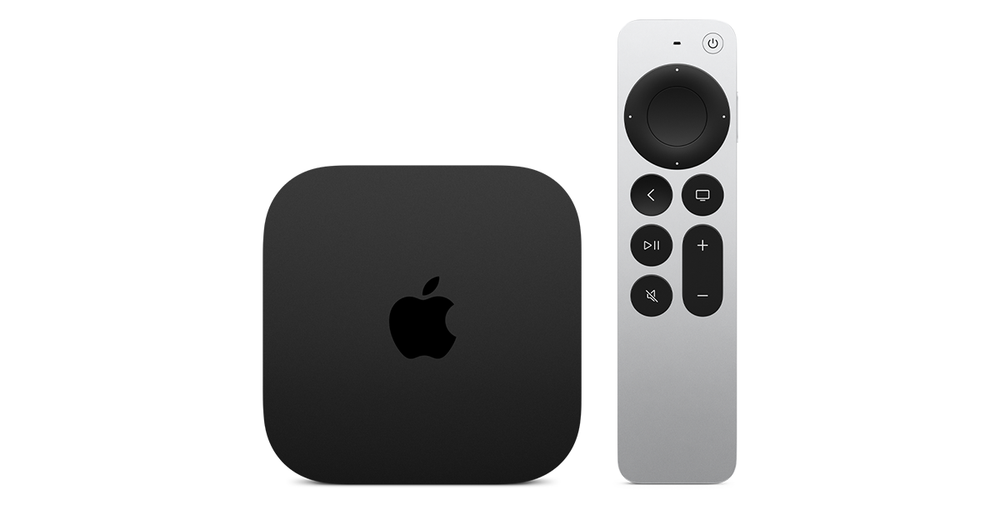
Identify the two audio origins
First compare an authorised programme played on Apple TV with sound from another device connected to the television. Record which television input is selected for each. A working HomePod output for Apple TV establishes one path; the external device adds a TV-to-Apple-TV audio return path.
Apple documents this return feature for Apple TV 4K second generation and later, HomePod or HomePod mini, and a television supporting ARC or eARC. Check the actual Apple TV generation and television documentation before searching for a missing menu on different hardware.
Inspect the port and output state
Apple’s current home-theatre guide places the Apple TV connection on the television’s eARC-labelled HDMI port for its eARC setup. It also requires television HDMI-CEC and HomePod as the default Apple TV output. Keep the connected port label, cable route and selected speaker room together in your notes.
In Apple TV Settings, Video and Audio, Audio Output, inspect Audio Return Channel and Play Television Audio. Apple’s dedicated ARC article identifies On (ARC) or On (eARC) as the enabled state. A HomePod name under Default Audio Output alone does not describe that return-channel status.
Retest the intended television input
After preparing the supported route, switch the television to the external device’s HDMI input and compare its audio again. If HomePod cannot be selected as default, Apple directs viewers to check that HomePod and Apple TV belong to the same room in the Home app; its guide also specifies the same network.
Television manufacturers may require additional ARC, eARC or CEC settings. Use that model’s instructions rather than guessing from another brand’s label. For help, provide both device models, the TV port, selected input, default speaker room and displayed return-channel state. These observations distinguish ordinary Apple TV speaker output from the additional path needed for another HDMI source.