
Confirm QMS support in the actual output path
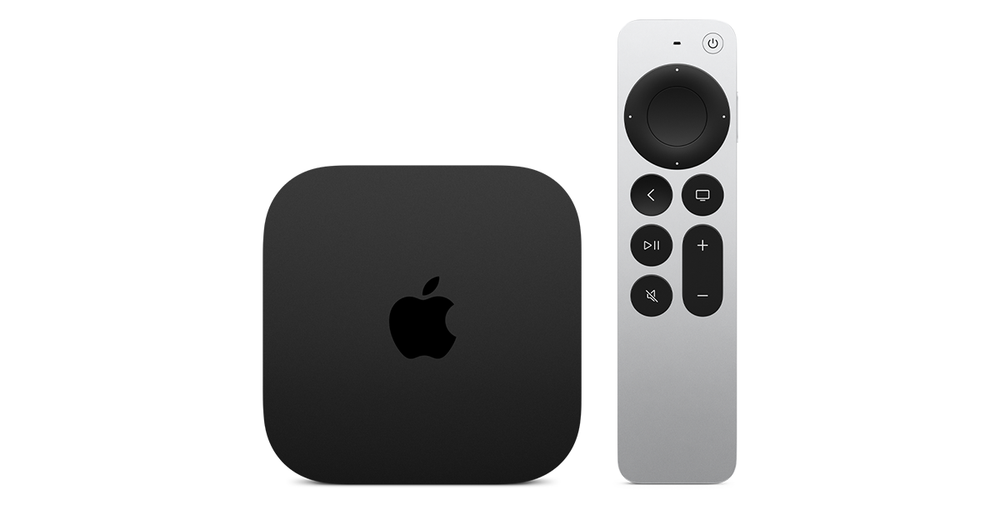
Record the Apple TV model, television and any receiver or soundbar between them. Apple’s third-generation Apple TV 4K specifications include QMS. Its current settings guide offers Quick Media Switching if the connected television supports it, so confirm the feature in the actual receiving path as well.
Do not infer QMS from a television simply having an HDMI input or advertising a general HDMI version. Consult the exact equipment’s feature documentation and current firmware information. Where the path does not support QMS, ordinary switching behaviour can remain; a missing QMS benefit does not identify a streaming-account fault.
Use the current Match Content controls
Apple’s current video-settings guide places QMS within Match Content under Settings, Video and Audio. It distinguishes matching frame rate from matching dynamic range, and warns that available options depend on the Apple TV, connected display and chosen format. Inspect the controls actually present in this setup.
Apple says QMS works best between formats using the same chroma. Its current guide provides Optimize QMS, followed by OK, to make the television use the same chroma across frame rates. Record the original output choices before applying that specific optimisation; changing several unrelated picture settings would make the result harder to assess.
Compare an eligible frame-rate transition
HDMI describes the relevant QMS case as the resolution remaining unchanged while only frame rate changes. Use that as the test boundary. For example, compare two authorised clips whose output stays at the same resolution but changes cadence, rather than comparing a low-resolution SDR clip with a differently sized HDR presentation and assuming QMS should conceal every change.
Note the active output format before and after each clip, whether the television reports a transition and whether picture and audio then remain stable. Keep the same application and HDMI path for the comparison where possible. A playlist or network pause in the middle of an unchanged programme is a different investigation from this output-switching feature.
Keep the result within QMS’s scope
If the expected improvement is absent, retain the equipment support evidence, chroma choices and exact before-and-after formats. Apple also supplies Check HDMI Connection for the current settings. That check concerns the configured link; it does not establish QMS support for every possible downstream format.
Report whether the control was present, whether Optimize QMS was applied and which same-resolution transition was compared. If resolution or other format properties changed as well, identify them explicitly rather than promising a completely blackout-free result. This gives the equipment maker a QMS-specific setup question while the broader format-switching guide remains the reference for other kinds of display transition.