
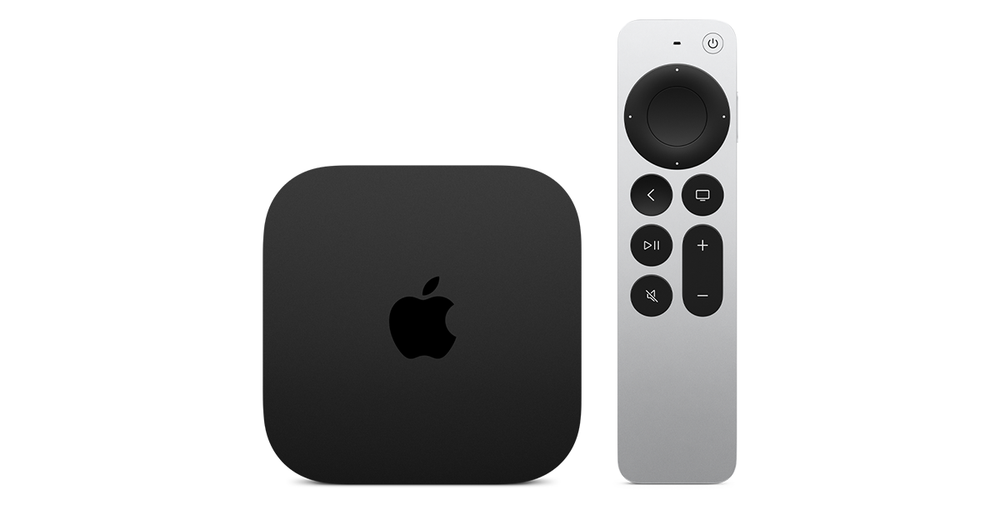
Identify the remote in your hand
Apple’s settings distinguish the silver clickpad remote from earlier touch-surface designs. Look at the controls you actually have and record the remote type along with the Apple TV model. A tutorial showing a circular ring may not describe an older remote’s exact gesture.
Begin on the tvOS home screen, where the selection is easy to observe. If the physical remote is unreliable across every screen, investigate charging, pairing or hardware separately from a problem confined to one player’s programme grid.
Choose touch tracking or Click Only
Open Settings → Remotes and Devices. For the silver remote, Clickpad offers Click and Touch or Click Only. Touch Surface Tracking also offers speed choices. Try one change, return to the same row of apps and compare how easily you can stop on the intended item.
Click Only can suit someone who prefers discrete directional presses. A slower tracking speed can help someone who still wants swiping but finds it overshoots. Neither choice guarantees that a poorly designed app will handle focus correctly. Preserve the previous setting so another household member can compare it.
Keep playback gestures in context
A timeline, a channel grid and the home screen can assign different meanings to left and right. Test navigation first while no important programme is playing, then learn the player’s seeking controls. Accidental seeking is not the same as a service interruption.
The Remote information entry also exposes its battery state. Note it when intermittent input becomes part of a support report. Record whether the same directional press works in Settings and fails only in one app; that comparison is more useful than a general statement that the remote is bad.