
Identify the generation before using a guide
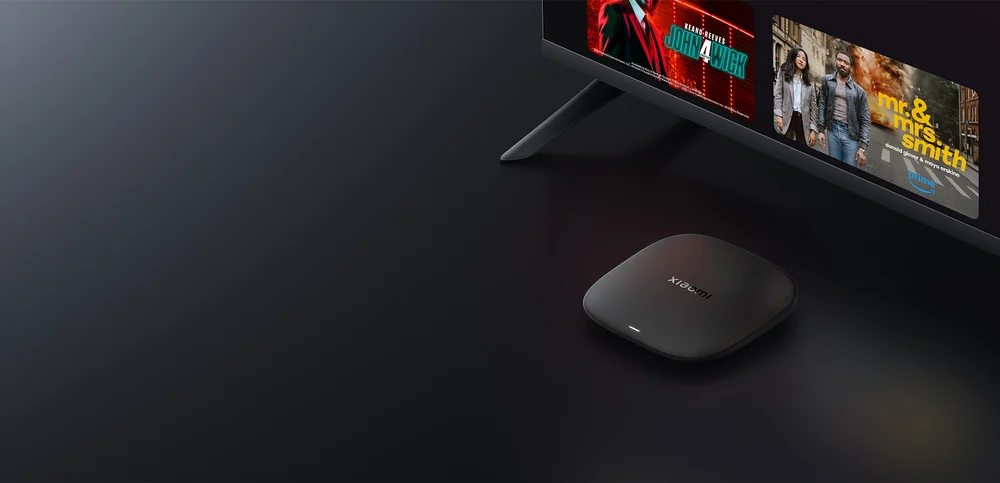
The third-generation Box S is distinct from the older Mi Box S and from Xiaomi’s TV sticks. Xiaomi’s current specification lists Google TV, 32 GB storage and one USB 2.0 port for this model. Record the actual model and installed software before comparing instructions.
Use Google TV’s app search or Apps tab to locate a supported player. An older Mi Box screenshot can be useful background, but it should not override the controls and publisher requirements on the current box.
Read codec limits rather than only 4K
Xiaomi’s FAQ distinguishes formats: its published AVC/H.264 limit differs from its HEVC/H.265 capability, and it explicitly lists some older codecs as unsupported. A stream can therefore have a familiar resolution and still fail because its encoded format is outside the relevant decoder path.
If one item plays with sound but no picture, capture the codec information exposed by the player and compare a known working item. This narrows the question more effectively than installing random codec packages intended for a Windows computer.
Check USB and network expectations
Use the documented connectors for the exact model. A photograph of a similar box is not proof that an Ethernet socket or a particular USB adapter is present. If you plan to use removable storage, establish whether the application can access it and whether the intended use is permitted.
Keep a network comparison controlled: same player, same video and same time period where practical. A format-specific error that repeats on both network paths points to a different question from a weak wireless signal.
Make a first-session checklist
- Open the selected Google TV player and confirm remote navigation.
- Add the supported account format privately.
- Try the actual video and audio formats you expect to watch.
- Check available storage and app update behaviour before restoring a large library.